
Favicon Not Showing in Google? Check Redirects, Robots.txt and Googlebot Access
Google updated its favicon guidance. Check homepage redirects, robots.txt rules, Googlebot access and favicon setup to fix missing icons in Search.

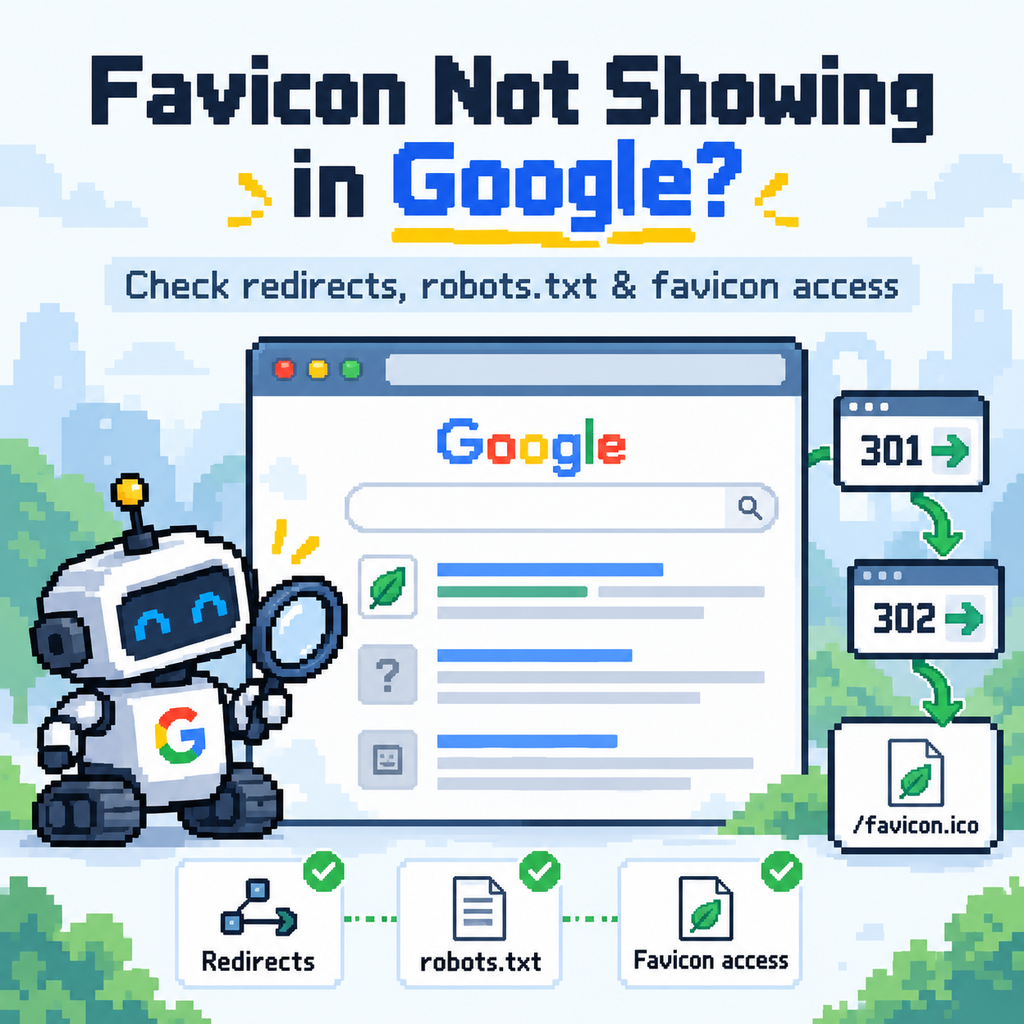
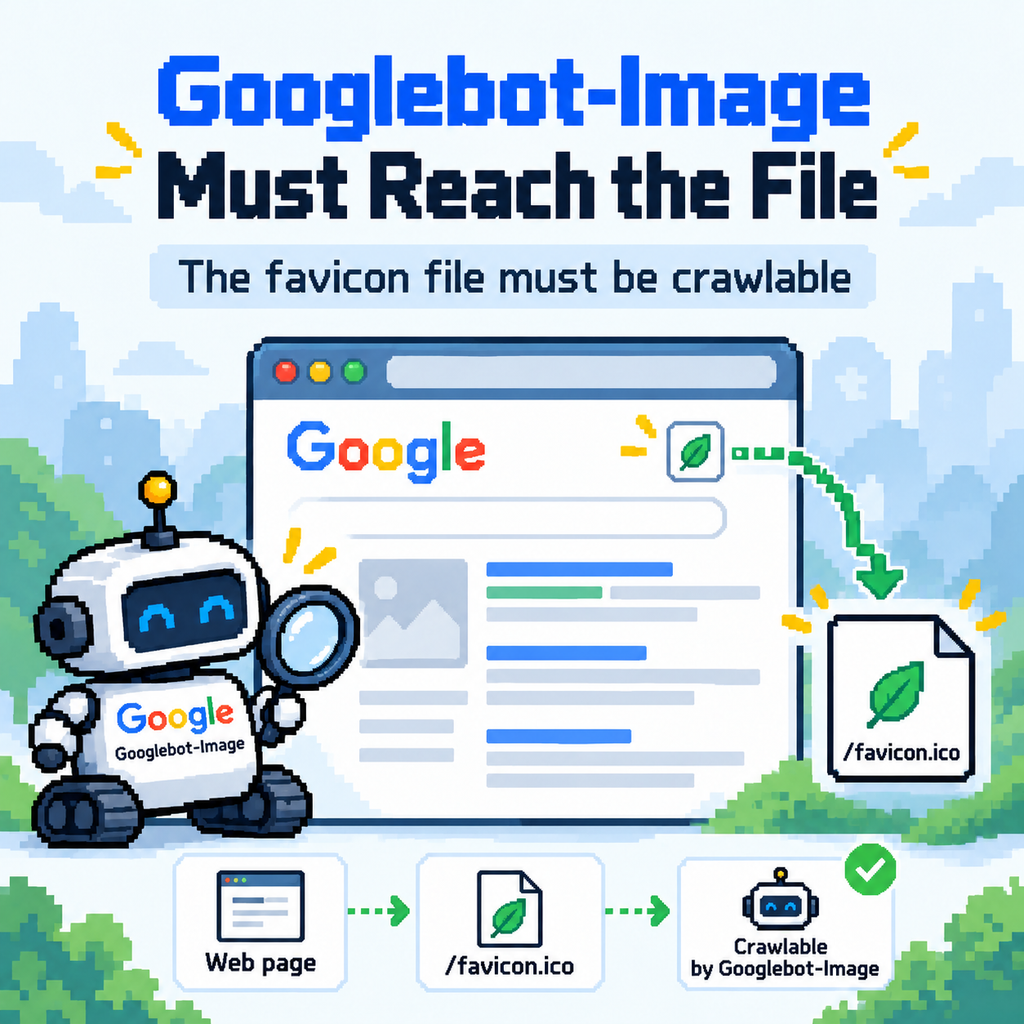
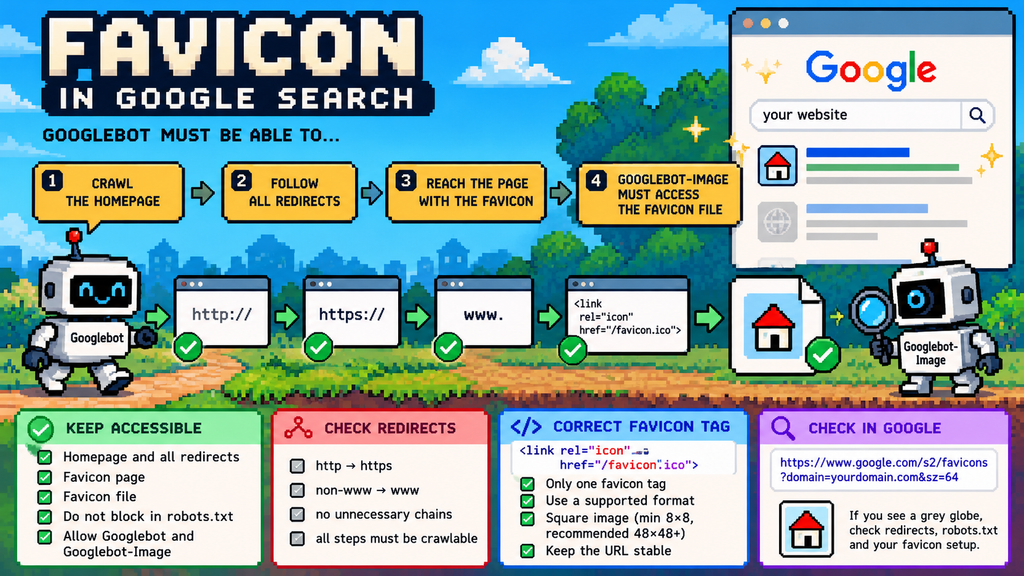
A favicon is one of the smallest elements on a website, but when it disappears from Google Search, the problem can reveal much larger technical SEO issues. On October 27, 2026, Google clarified its documentation for favicons in search results. The updated guidance now explicitly states that Googlebot must be able to crawl the homepage, follow any redirects from the homepage to the page where the favicon is specified, and Googlebot-Image must be able to access the favicon file itself. None of those URLs should be blocked from crawling.
For website owners, this means checking only the favicon file is no longer enough when troubleshooting. You also need to look at the entire path Googlebot follows before it reaches it.
Table of Contents
What exactly did Google change?
Google previously explained that:
- Googlebot needed access to the homepage;
- Googlebot-Image needed access to the favicon file.
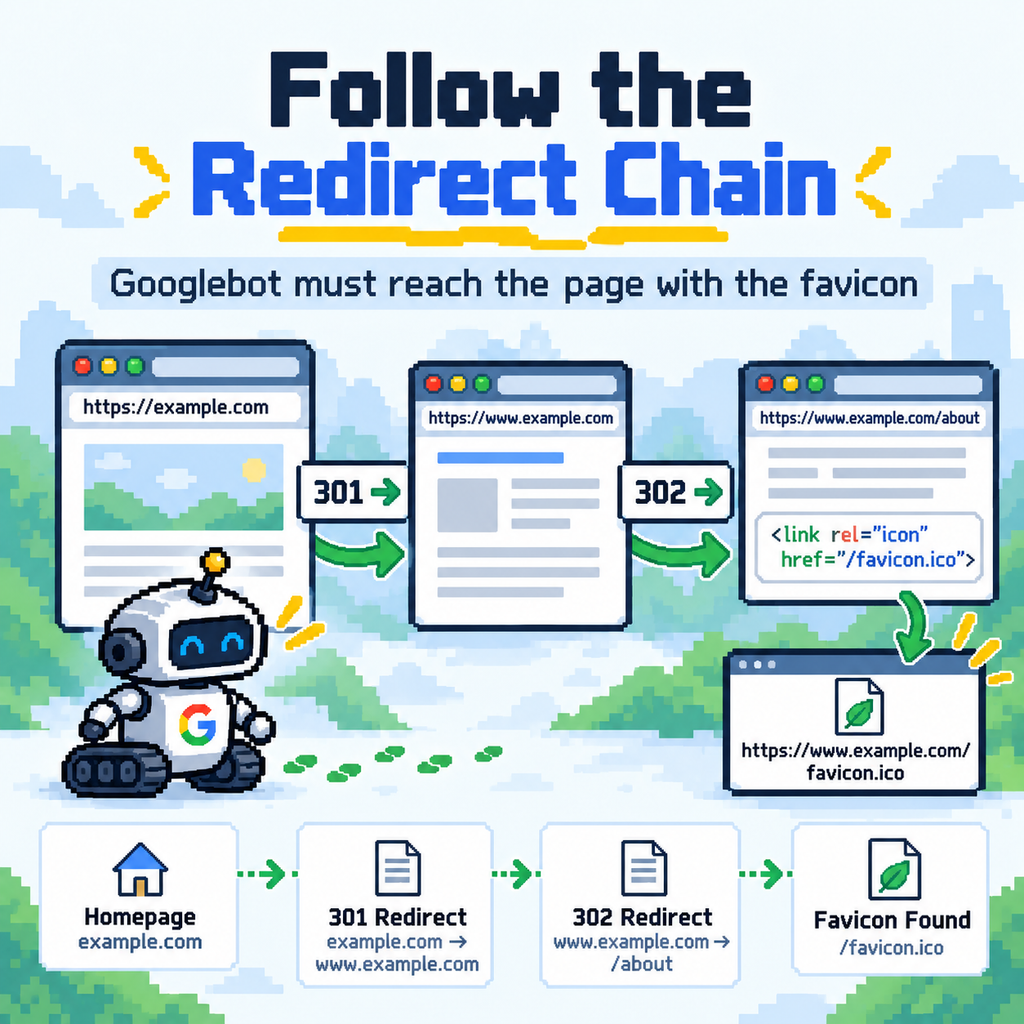
The October update makes the redirect process much more explicit. Google’s current documentation states that Googlebot must be able to access the homepage and follow any redirects from it to the page where the favicon is defined. Googlebot-Image must then be able to crawl the actual favicon resource.
This matters because the URL a visitor types is not always the URL that eventually serves the website.
A site might follow a sequence such as:
http://example.com
→ https://example.com
→ https://www.example.com
→ final homepage
That is perfectly normal when configured correctly. The problem begins when one part of that chain is inaccessible to Google.
For example:
- an HTTP version is blocked;
- a redirect is configured incorrectly;
- a CDN challenges Googlebot;
- a firewall blocks one hostname;
- one version of the website requires authentication;
- robots.txt prevents crawling;
- the favicon URL itself is inaccessible to Googlebot-Image.
In these cases, the website may appear perfectly normal in a browser while Google sees something different.
Why does the favicon matter?
A favicon does not replace a complete SEO strategy, but it is an important visual identifier in search results. Users scan search results quickly. A recognisable brand icon can make it easier to identify your website among other results.
If Google displays a generic icon instead, your result can look less distinctive. More importantly, a missing favicon can sometimes be a symptom of an underlying crawling problem. If Google cannot correctly follow the route from your homepage to the final page, the favicon may not be the only element worth checking.
The same redirect or crawling configuration can potentially affect how Google understands other parts of the website. That makes favicon troubleshooting a useful technical SEO check rather than a purely cosmetic task.
How to check which favicon Google sees
One quick way to see the favicon currently associated with a domain is Google’s favicon service.
Replace example.com with your own domain: https://www.google.com/s2/favicons?domain=example.com&sz=64
For example: https://www.google.com/s2/favicons?domain=spotlightwebs.com&sz=64
If the correct icon appears, there may be nothing you need to change. If you see a generic globe, an outdated favicon or an unexpected image, investigate further. This URL is useful as a quick check, but it should not replace a proper technical audit.
1. Check every homepage variation
Do not test only the final HTTPS URL.
Check:
- http://example.com
- http://www.example.com
- https://example.com
- https://www.example.com
You want each unnecessary version to redirect consistently toward the canonical homepage.
For example:
- http://example.com → https://example.com
is straightforward.
A chain such as:
- http://example.com → http://www.example.com → https://www.example.com → https://example.com
is unnecessarily complicated.
Long redirect chains are not automatically the reason a favicon disappears, but they create more opportunities for configuration errors. Where possible, keep redirects simple and intentional.
2. Make sure Googlebot can follow the redirects
This is the central point of Google’s updated wording. Googlebot must be able to request the starting homepage URL and continue through the redirects until it reaches the page where the favicon is declared.
Check that none of these URLs are blocked by:
- robots.txt;
- server authentication;
- IP restrictions;
- CDN security rules;
- anti-bot services;
- firewall rules;
- staging protection;
- security plugins.
A common mistake is assuming that if the site loads in Chrome, Googlebot must see the same thing. That is not always true. Your browser and Googlebot can receive completely different responses from the same server.
3. Check robots.txt
Review: https://example.com/robots.txt
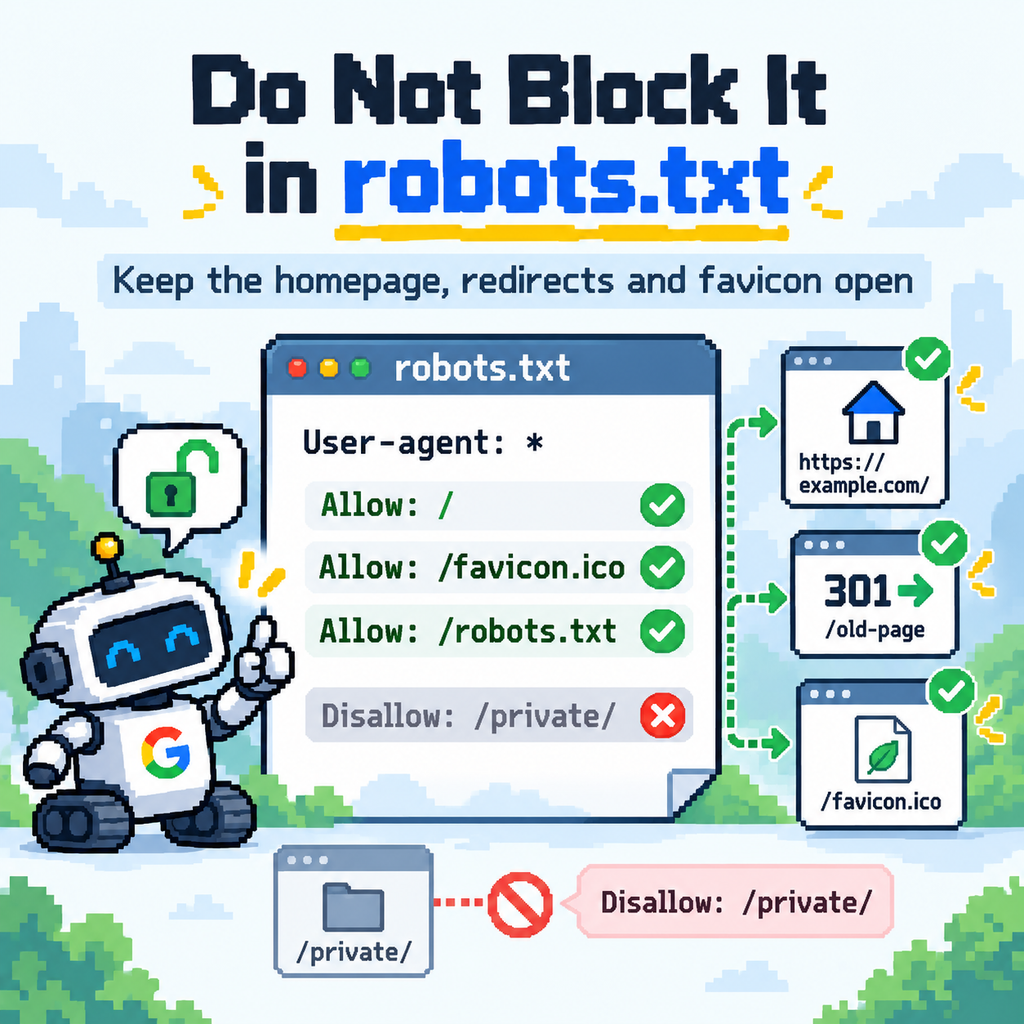
Make sure you are not accidentally blocking the homepage or relevant resources.
Pay particular attention to broad rules such as:
- User-agent: *
- Disallow: /
or rules targeting directories where assets are stored.
Remember that the favicon itself must also remain accessible to Googlebot-Image.
If you recently added rules to block AI crawlers, SEO tools or unwanted bots, check that the changes did not unintentionally affect Googlebot or Googlebot-Image. This is particularly important when robots.txt has grown over time and contains separate sections for multiple crawlers.
Check how the favicon is declared
Google expects favicon information to be referenced from the homepage using a supported <link> element inside the <head>.
A simple implementation looks like this:
<link rel=”icon” href=”/favicon.ico”>
Google currently supports several rel values, including:
- icon;
- shortcut icon;
- apple-touch-icon;
- apple-touch-icon-precomposed.
The favicon URL can be relative or absolute, and the file can even be hosted on a CDN. During troubleshooting, however, I recommend keeping the setup as clear as possible. If several plugins, a theme and custom code are all generating different favicon references, you may end up with multiple competing declarations. That unnecessarily complicates diagnosis. Check the source code of the homepage and confirm which favicon URL is actually being presented.
Check the favicon file itself
Opening the favicon in your own browser is only the beginning.
Verify that the URL:
- returns successfully;
- does not require authentication;
- does not redirect through an unnecessary chain;
- is available to Googlebot-Image;
- remains at a stable URL;
- serves an actual supported image format.
Google currently supports favicon files in formats including BMP, GIF, ICO, PNG, JPEG, PPM and TIFF.
Favicon size requirements
Google requires the favicon to be square. The minimum dimensions are 8×8 pixels, although Google recommends using an image larger than 48×48 pixels so that it displays properly across different surfaces. In practice, there is little reason to create an 8×8 favicon today.
A high-quality square source image is generally a better option.
For example:
- 48×48;
- 96×96;
- 192×192;
- 512×512.
Your CMS or favicon implementation can then provide the appropriate versions where necessary.
Keep the favicon URL stable
Google also recommends keeping the favicon URL stable.
Avoid changing: /favicon.png
to: /favicon-new.png
then: /favicon-final.png
then: /favicon-final-2.png
every time the design receives a minor adjustment.
If the branding has not fundamentally changed, maintaining a stable resource URL makes crawling and processing simpler.
One favicon per hostname
Google supports one favicon per hostname. That distinction matters.
These can have different favicons:
- example.com
- news.example.com
- because they are different hostnames.
But:
- example.com/services
- example.com/blog
cannot independently define separate Google Search favicons simply because they are different directories. This is particularly relevant for larger websites with multiple sections.
What to do after fixing the favicon
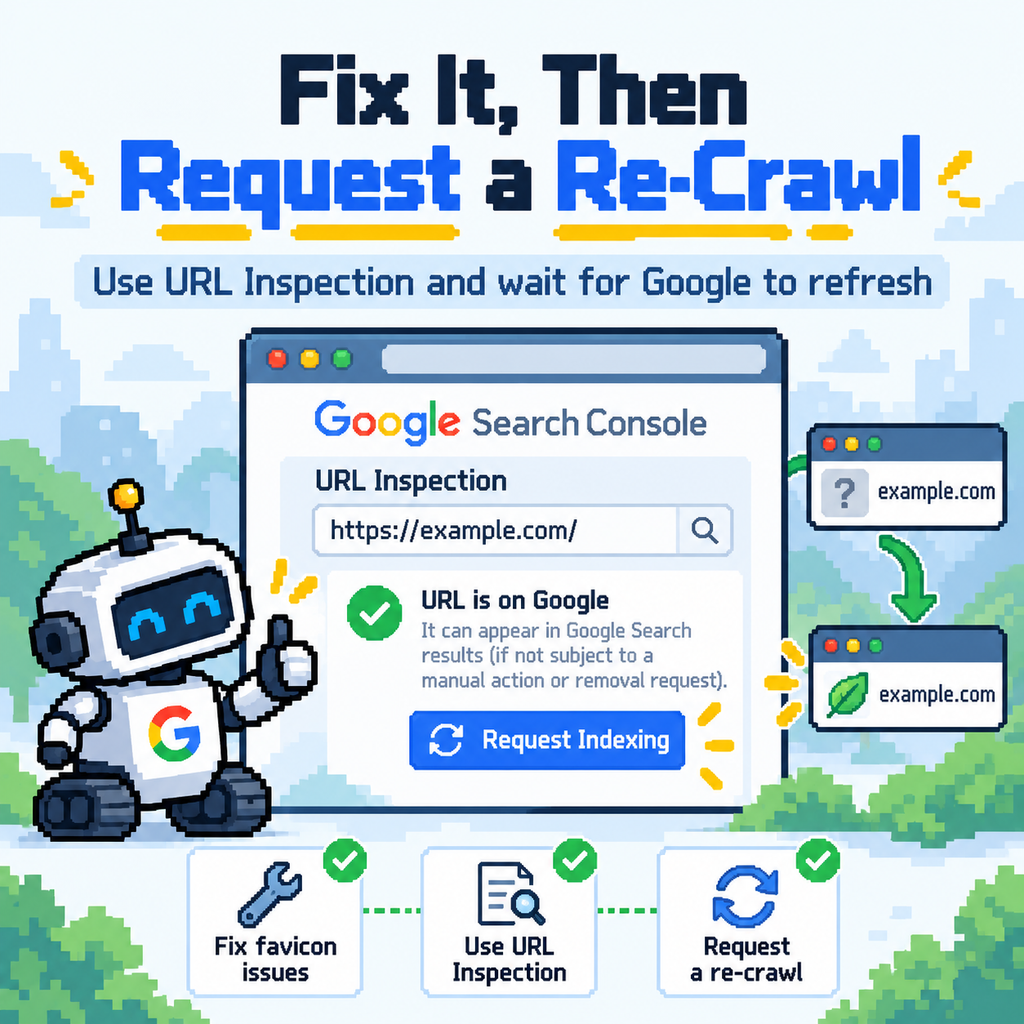
After fixing the technical problem, inspect the homepage using Google Search Console → URL Inspection. If everything is accessible correctly, request indexing for the homepage. Do not expect the favicon to update immediately.
Google says recrawling and processing changes can take from several days to several weeks, depending on how frequently its systems decide the content should be refreshed.
And there is another important point:
- Meeting every technical requirement does not guarantee that Google will display your favicon.
- Google explicitly states that favicon appearance in search results is not guaranteed.
A practical favicon troubleshooting checklist
If your favicon is missing from Google, check the following:
- Test the favicon Google currently associates with your domain.
- Check HTTP, HTTPS, www and non-www homepage versions.
- Follow the complete redirect chain.
- Make sure every URL in that chain is available to Googlebot.
- Check robots.txt.
- Check firewall, CDN and bot-protection rules.
- Confirm Googlebot-Image can access the favicon file.
- Inspect the homepage source and locate the favicon declaration.
- Remove unnecessary or conflicting favicon implementations where possible.
- Make sure the favicon is square and uses a supported format.
- Keep the favicon URL stable.
- Request another crawl of the homepage in Search Console after fixing the issue.
Why did Google clarify the documentation now?
There is another interesting part of this update. According to Google’s John Mueller, the wording was changed because AI systems were not interpreting the previous instructions precisely enough when asked to diagnose favicon problems.
Google tested the clearer version of the documentation in prompts and found that it produced better troubleshooting results. That detail is arguably more interesting than the favicon change itself.
Google is not only publishing documentation for developers and SEO specialists anymore. Documentation also increasingly becomes input for AI systems.
When somebody asks an AI assistant:
Why is my website favicon not appearing in Google?
the quality and precision of Google’s documentation directly affect the quality of the answer the system can provide. This is another example of why unambiguous technical information matters in the AI-search era.
Technical SEO is increasingly about machine-readable clarity
The favicon update is small, but the principle behind it is much broader.
Modern websites are interpreted by:
- Googlebot;
- Googlebot-Image;
- browsers;
- social networks;
- AI search systems;
- structured-data parsers;
- accessibility technologies;
- third-party platforms.
A configuration may look obvious to a human developer but remain ambiguous to a crawler. тThat is why good technical SEO increasingly means eliminating unnecessary uncertainty.
Your website should make it easy to determine:
- which homepage is canonical;
- which URLs redirect and where;
- what content can be crawled;
- what resources belong to the website;
- what the business represents;
- which entity owns the website;
- which pages describe individual services;
- which images and logos represent the brand.
A favicon is only one small piece of that architecture.
The bigger lesson: do not treat technical SEO as an afterthought
Many website problems begin with the same assumption: “The website works for me, so it works.”
From an SEO perspective, that is not enough. A website can look perfect in a browser while Googlebot encounters:
- redirect loops;
- blocked resources;
- conflicting canonical URLs;
- server errors;
- inconsistent HTTP and HTTPS versions;
- duplicate hostnames;
- incorrect robots.txt rules;
- JavaScript rendering issues;
- inaccessible images.
Technical SEO is the process of identifying and removing those barriers. That applies whether the problem is a missing favicon, an incorrectly indexed page or an entire section of a website that fails to appear in search. At Spotlightwebs, technical optimisation is part of website development and ongoing SEO work rather than something added only after problems appear.
A website should be accessible and understandable not only to visitors, but also to the search engines and AI systems that discover and process it.